Your 360Hz MSI Monitor Feels Choppy — And It's Not the Refresh Rate's Fault
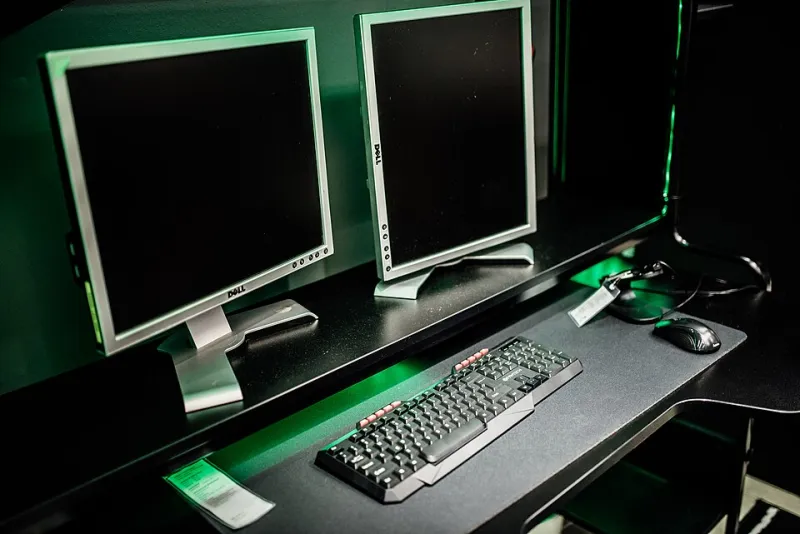
Photo: Shixart1985, CC BY 2.0, via Wikimedia Commons
You bought the monitor. You checked the spec sheet. 360Hz, 1ms response time, G-Sync Compatible — everything that's supposed to make games feel silky. But something's off. Motion looks slightly stuttery. Fast flicks don't feel as clean as your friend's setup running a supposedly "slower" display.
You're not imagining it. And the problem probably isn't your monitor.
It's frame time — and it's the most important metric in high-refresh gaming that almost nobody talks about.
Refresh Rate vs. Frame Time: Why They're Not the Same Thing
Here's the distinction that changes everything. Refresh rate is how many times per second your monitor can draw a new image. Frame time is how long it takes your GPU to actually render and deliver each of those frames.
A 360Hz monitor refreshes every 2.78 milliseconds. For that to feel perfectly smooth, your GPU needs to deliver frames at that exact, consistent interval. If frames arrive at 2.78ms, 2.78ms, 2.78ms — smooth. If they arrive at 1.5ms, 4.2ms, 2.1ms, 3.8ms — your eyes perceive stutter, even if the average frame rate works out to 360fps.
That inconsistency is called frame time variance, and it's the invisible enemy of high-refresh gaming.
Why This Hits High-Refresh Monitors Harder
At 60Hz, frame time variance is relatively forgiving. Humans aren't great at detecting inconsistencies at that scale. But at 360Hz, your monitor is operating at timescales where even small delivery inconsistencies become perceptible. You're essentially running a precision instrument, and precision instruments amplify imperfections.
This is why two 360Hz monitors — even two MSI monitors from different product lines — can feel dramatically different in practice. Same spec sheet, different real-world feel. The panel itself may be identical. What differs is how well the display's scaler, overdrive circuit, and your GPU's driver stack cooperate to deliver frames consistently.
The Overdrive Problem
Every fast gaming monitor uses pixel overdrive to reduce ghosting — essentially overdriving the voltage to liquid crystal pixels so they transition faster. MSI's monitors typically offer multiple overdrive settings (often labeled something like Normal, Fast, and Fastest, or a numbered scale).
Here's the catch: too much overdrive introduces inverse ghosting (bright halos on moving objects), and the "correct" overdrive setting varies depending on your actual frame rate. A setting that's perfect at 240fps might look terrible at 360fps, and vice versa.
Most gamers set their overdrive once during initial setup and never touch it again. That's a mistake on high-refresh panels. If your frame rate fluctuates between 200 and 360 in a given game, your overdrive setting is optimized for none of those points simultaneously.
How to Actually Test Frame Time on Your Setup
You don't need exotic hardware for this. Here's a practical workflow:
Step 1: Get a frame time overlay running. MSI Afterburner with the RivaTuner Statistics Server overlay can display frame time graphs in real time. Enable it and look for the frame time line — you want it flat. Spikes mean inconsistency.
Step 2: Check your GPU driver settings. Nvidia's "Ultra Low Latency Mode" (set to Ultra, not On) and AMD's Anti-Lag+ both affect frame pacing. These should generally be enabled for competitive gaming. Make sure you're not running conflicting frame limiters — one in-game, one in the driver, and one in Afterburner simultaneously will create pacing chaos.
Step 3: Set a frame rate cap slightly below your refresh rate. This is counterintuitive but important. Capping at 350fps on a 360Hz display gives your GPU headroom to deliver frames consistently rather than alternating between 360+ and sub-360. RTSS is the most precise tool for this — set your cap there, not in-game.
Step 4: Calibrate overdrive for your actual frame rate. Once you've established a consistent frame rate cap, test each overdrive level in MSI's OSD. Look for the highest setting that doesn't produce inverse ghosting at your target frame rate. In fast-paced games like Valorant or CS2, you'll likely want a more aggressive setting than in slower titles.
G-Sync Compatible vs. Native G-Sync: Does It Matter Here?
For frame time consistency, yes — it matters more than most people realize. Native G-Sync modules have dedicated hardware that manages frame delivery timing on the monitor side, which smooths out variance that variable refresh rate implementations handle in software. MSI's higher-end displays with native G-Sync modules will generally show better frame time behavior under variable load than G-Sync Compatible (adaptive sync) panels.
That said, G-Sync Compatible has improved substantially with recent Nvidia driver updates. If you're running a G-Sync Compatible MSI monitor, make sure your Nvidia Control Panel has G-Sync enabled for both windowed and full-screen modes — many builds have it only enabled for full-screen, which leaves a lot of smoothness on the table.
AMD GPU Users: An Extra Step
If you're running an AMD card with an MSI monitor, AMD's driver frame pacing has historically been slightly more variable than Nvidia's at very high frame rates. Anti-Lag+ helps, but you'll also want to check that Radeon Chill is disabled (it introduces intentional frame rate variance) and that Enhanced Sync is off if you're using adaptive sync — the two don't play well together.
The Practical Takeaway
Your MSI 360Hz monitor isn't underperforming. It's doing exactly what it's supposed to do. The smoothness you're chasing depends on what you feed it.
Flat frame times, a properly calibrated frame cap, the right overdrive setting, and clean driver configuration — get those four things right and you'll feel the difference that spec sheet was promising. Skip any of them and you're paying for precision hardware while delivering imprecise input.
High refresh rate gaming is a system problem, not a monitor problem. Treat it that way.