240Hz on Paper, Sluggish in Practice: What Your MSI Monitor's Spec Sheet Isn't Telling You
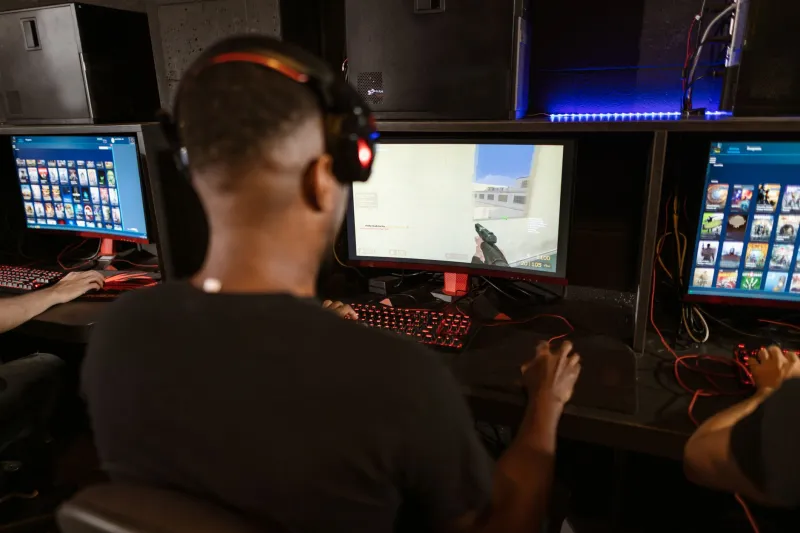
You did your homework. You picked up a 240Hz MSI monitor, dropped it on your desk, plugged everything in — and something feels... off. Your buddy is running the same refresh rate on a different display and swears his setup feels snappier. You're both looking at the same number on paper. So what gives?
This is one of the most common frustrations in PC gaming, and it comes down to a simple truth: refresh rate is just one piece of a much bigger puzzle. The spec sheet doesn't capture the whole experience, and chasing the biggest number without understanding the supporting cast of specs can leave you seriously underwhelmed.
Let's break down what's actually going on.
Refresh Rate Is the Floor, Not the Ceiling
Think of your monitor's refresh rate as the maximum number of frames the display can show per second. A 240Hz panel refreshes 240 times every second — that's the ceiling. But whether you actually see 240 unique frames depends entirely on what your GPU is pushing out.
If you're playing a competitive shooter and your rig is only hitting 160 FPS, your 240Hz monitor is essentially running at 160Hz in practice. You're not getting cheated exactly — the display is still doing its job — but you're not unlocking the panel's full potential either. This is why GPU performance and monitor specs need to be evaluated together, not in isolation.
With MSI's gaming lineup, you've got monitors tuned for esports play (like the MAG and Optix series) alongside GPUs ranging from mid-range cards to high-end powerhouses. Matching them correctly matters more than most people realize before they buy.
Response Time: The Spec That Actually Trips People Up
Response time is where things get genuinely confusing, and monitor manufacturers don't always make it easier. The number you see advertised — often 1ms or 0.5ms — typically refers to GtG (gray-to-gray) pixel transition time. That's how fast a pixel can shift from one shade of gray to another under ideal lab conditions.
Here's the problem: that number is measured using overdrive at its most aggressive setting. Crank overdrive too high and you get pixel overshoot, where pixels blow past their target color and leave ghosting artifacts that look worse than a slightly slower response time would have. Some monitors list their best-case GtG time without telling you it was achieved at an overdrive level that introduces visible inverse ghosting in real gaming scenarios.
A panel rated at 1ms GtG that shows noticeable overshoot artifacts can feel worse in motion than a 4ms panel running at a balanced overdrive setting. When you're evaluating MSI monitors, it's worth digging into reviews that actually test multiple overdrive modes rather than just quoting the spec sheet number.
For most competitive gaming at 240Hz or above, you want a panel where the "Normal" or "Medium" overdrive preset hits a sweet spot — fast enough to keep up with the refresh rate without introducing ghosting. MSI's IPS-based gaming monitors tend to handle this balance pretty well at their recommended settings, but it's still worth knowing the dial exists.
Input Lag: The Hidden Delay Nobody Talks About Enough
Response time and input lag are not the same thing, and mixing them up is incredibly common. Response time is about how fast pixels change. Input lag is about how long it takes from the moment you move your mouse or click a button to the moment the result shows up on screen.
Input lag is measured in milliseconds and is influenced by several factors:
- The monitor's internal processing — some panels add latency through image processing, HDR tone mapping, or other post-processing features
- Your GPU render time — how long it takes your card to produce each frame
- Frame buffer behavior — whether frames are being queued up or delivered immediately
- Game engine latency — how quickly the game itself processes your input
A monitor can have a lightning-fast 1ms GtG response time but still add 10ms of input lag through onboard image processing. That extra delay is real and you will feel it, especially in fast-paced competitive games like Valorant, CS2, or Apex Legends.
MSI's gaming monitors generally include a "Gaming Mode" or similar preset that strips out unnecessary processing to minimize input lag. If you're running one of their displays, make sure you're not gaming with HDR or any upscaling features active unless you've specifically tested for lag — those features almost always add measurable delay.
Why Two 240Hz Monitors Can Feel Completely Different
Panel technology plays a huge role here. A 240Hz TN panel, a 240Hz IPS panel, and a 240Hz VA panel will all behave differently in motion, even at the same refresh rate.
- TN panels traditionally had the fastest pixel response times but weaker color and viewing angles. They're less common in MSI's current lineup for this reason.
- IPS panels offer great color accuracy and wide viewing angles. Response times have improved dramatically in recent generations, and modern fast IPS panels are genuinely competitive for esports use.
- VA panels can struggle with dark-scene smearing due to slower pixel transitions in shadow areas — something that matters a lot in games with dark environments.
Beyond panel type, the scaler chip inside the monitor affects input lag, and the backlight strobing implementation (if the monitor supports it) affects motion clarity independently of response time. Two monitors can share the same panel but have meaningfully different gaming experiences based on the engineering around it.
How to Actually Test What Matters for Your Setup
Instead of trusting spec sheets alone, here's a practical approach:
1. Use RTSS or your GPU overlay to monitor frame rates in-game. If you're consistently hitting your monitor's refresh rate, great. If not, your bottleneck is the GPU, not the display.
2. Test overdrive settings yourself. In your MSI monitor's OSD, cycle through the overdrive presets during a fast-paced game or a motion test (Blur Busters UFO Test is free and browser-based). Find the highest setting that doesn't show trailing artifacts.
3. Turn off features you don't need. HDR, FreeSync (if you're running an NVIDIA card without G-Sync Compatible support), and any image enhancement modes can all add latency. Start with a clean, minimal setup.
4. Check for VRR (Variable Refresh Rate) compatibility. If your MSI GPU supports FreeSync or G-Sync and your monitor does too, enabling VRR can smooth out frame delivery even when you're not locked to your refresh rate ceiling — often making the experience feel more consistent than a raw 240Hz locked framerate would.
5. Pay attention to how the game feels, not just how it looks. Input lag is something you sense before you consciously identify it. If aiming feels floaty or your reactions feel slightly delayed, it's worth investigating your display chain rather than assuming it's a skill issue.
The Bottom Line
Refresh rate is a starting point, not a finish line. The actual gaming experience your MSI monitor delivers is shaped by response time consistency, input lag from onboard processing, panel technology, overdrive behavior, and whether your GPU can actually keep up with the display. Two setups running identical refresh rates can feel worlds apart once you factor all of that in.
Do your research, test your own settings, and don't let a single spec number make the decision for you. The best monitor for competitive gaming isn't always the one with the biggest number — it's the one that's properly configured and genuinely matched to your GPU and play style.