Your Gaming PC Shouldn't Sound Like a Leaf Blower — Here's How to Quiet It Down
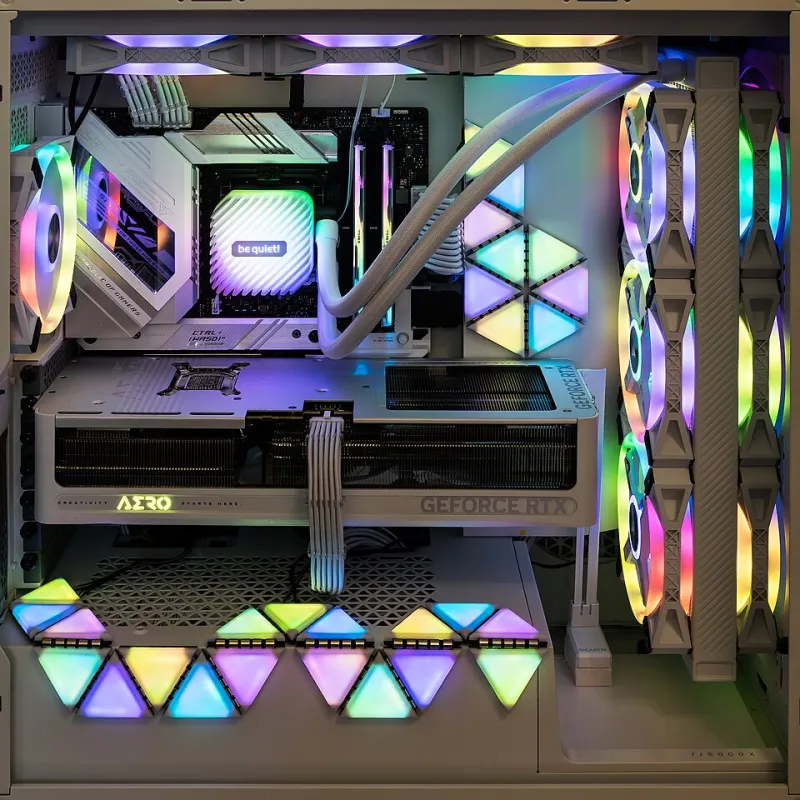
Photo: Jacek Halicki, CC BY-SA 4.0, via Wikimedia Commons
Let's be real: nobody warned you that building a high-performance gaming rig would mean sitting three feet away from something that sounds like it's about to achieve liftoff. You drop serious cash on an MSI RTX 4070 or a beefy B650 build, fire up your favorite game, and suddenly you're competing with the fan noise just to hear your own Discord chat.
Here's the thing — that racket isn't inevitable. Loud systems are almost always the result of default settings, lazy airflow design, or a few overlooked component choices. The good news? Most of it is fixable without cracking open your wallet for a whole new setup.
Why Your PC Gets Loud in the First Place
Fans spin faster when temperatures climb. That's just physics. But why your temps climb — and how aggressively your system reacts — is where most of the noise actually comes from.
Out of the box, MSI motherboards ship with fan profiles that lean toward caution. The BIOS defaults are designed to keep components safe across a wide range of builds, which means they tend to ramp fans up early and hard. Your CPU cooler might be screaming at 2,800 RPM when your chip is sitting at a perfectly comfortable 65°C — a temperature where it genuinely doesn't need that kind of airflow.
GPUs have their own habits. MSI's GAMING TRIO and VENTUS cards use zero-RPM modes at idle, which is great, but under load they can spike to full blast in seconds if the thermal headroom gets tight. If your case airflow isn't helping exhaust that heat, the GPU compensates by going louder, longer.
Step One: Tune Your Fan Curves in MSI Center
This is the single highest-impact change most people never make. MSI Center (free download, works with most modern MSI boards and systems) gives you direct control over fan behavior without digging into the BIOS.
Here's a starting point that works for most mid-range gaming builds:
- Below 50°C: Fans at 30–40% speed or even stopped entirely if your cooler supports it
- 50–65°C: Gradual ramp, targeting around 50–60% speed
- 65–75°C: More aggressive climb, hitting 70–80%
- Above 75°C: Full send — let the fans do their job
The key is making the curve gradual. Steep jumps are what cause that jarring whoosh every time you load into a game. A smooth ramp is quieter and still keeps temps in check.
If you're more comfortable in the BIOS directly, MSI's Click BIOS 5 and newer interfaces have fan curve editors built right in under the Hardware Monitor section. You can set curves per header, which is useful if your case fans and CPU cooler are on separate channels.
Step Two: Rethink Your Case Airflow
Bad airflow is one of the sneakiest noise culprits. When hot air recirculates inside the case instead of getting pushed out, temperatures rise, fans compensate, and suddenly everything is louder than it needs to be.
The standard guidance — front intake, rear and top exhaust — still holds up. But a few details matter:
Check your fan count and placement. A single exhaust fan fighting against no intake is working overtime. Two front intakes and one rear exhaust is a solid baseline for most ATX cases. If you've got a mid-tower with top fan slots, a second exhaust up there helps a lot with GPU heat.
Don't neglect cable management. This one sounds cosmetic, but a rats' nest of cables right in front of your intake fans can cut airflow dramatically. Routing cables behind the motherboard tray — even imperfectly — makes a measurable difference.
Check for dust. Clogged filters choke intake airflow, which forces fans to spin harder to move the same amount of air. If you can't remember the last time you cleaned your filters, do it now. A can of compressed air and five minutes is all it takes.
Step Three: Look at Your Cooler Setup
Stock coolers — especially the ones bundled with AMD Ryzen chips — are decent, but they're not optimized for silence. If your CPU cooler is the loudest thing in your case, an aftermarket air cooler can make a dramatic difference.
You don't have to go all-in on a 360mm AIO to get quiet cooling. A quality dual-tower air cooler like the be quiet! Dark Rock Pro or a Noctua NH-D15 will handle most gaming workloads at much lower fan speeds than a compact single-tower. Larger heatsinks move more air per rotation, which means the fans don't need to spin as fast.
For those already running an AIO, check your pump speed settings. Some AIO configurations default to a higher pump speed than necessary, adding a persistent low-level hum. Dropping the pump to a balanced or quiet mode in MSI Center usually has zero impact on cooling performance and noticeably cuts background noise.
Step Four: Don't Forget Vibration and Resonance
Sometimes the noise isn't the fans themselves — it's the case vibrating in sympathy with them. A slightly loose side panel, a fan that's not fully seated, or a hard drive mounted without dampening can turn a moderate amount of fan noise into something that rattles your whole desk.
- Tighten any loose thumbscrews on panels and fans
- If you have mechanical hard drives, consider anti-vibration mounting grommets (cheap and widely available)
- Make sure your case is sitting on a stable surface — carpet can actually help dampen vibration compared to a hard desk surface
The Bigger Picture
High performance and quiet operation aren't mutually exclusive — they just require a little deliberate tuning. Most gaming rigs run louder than they need to because nobody ever told the fans to calm down. A few hours of adjusting curves, cleaning filters, and tidying up your airflow path can take a system from obnoxious to nearly silent under everyday gaming loads.
The loudest your PC should ever get is during a sustained, all-out benchmark run. If it sounds like that while you're just browsing or queuing in a lobby, there's room to optimize. Start with the fan curves, fix your airflow, and you'll probably be surprised how much quieter the same hardware can actually be.