How Your Motherboard's Power Delivery Dies a Slow Death — And What to Watch For Before It Takes Your Whole Build Down
You built your rig, it ran great on day one, and three years later it's still booting up every morning without complaint. So everything's fine, right? Maybe. But inside your MSI motherboard, a slow and largely invisible process has been underway since the moment you first powered on — and most gamers have absolutely no idea it's happening.
We're talking about VRM degradation and capacitor aging. It's not dramatic. There's no smoke, no sudden crash, no blue screen that announces the problem clearly. It just quietly chips away at your power delivery until one day your system starts acting weird, your CPU throttles under load, or — worst case — something fries. By that point, you're already in damage control mode.
Let's break down what's actually going on, why it matters more than most enthusiast content lets on, and what you can realistically do about it.
What's Actually Happening Inside Your VRM
Your motherboard's voltage regulator module — the VRM — is responsible for taking the raw 12V power from your PSU and converting it into the precise, stable voltages your CPU actually needs to operate. Modern processors are incredibly power-hungry and voltage-sensitive, so this job is more demanding than it sounds.
Every time your CPU ramps up under gaming load, the VRM responds. The MOSFETs switch rapidly, inductors handle current flow, and capacitors smooth out voltage ripple. Do that thousands of times a day, every day, for three to five years, and the components involved start to show wear. This is basic physics — thermal cycling, electromigration in the MOSFETs, and the gradual breakdown of the electrolyte inside capacitors all accumulate over time.
Solid polymer capacitors — which MSI uses on its mid-range and higher boards — degrade more gracefully than older electrolytic designs. But "more gracefully" doesn't mean "immune." Even quality capacitors lose capacitance over years of thermal stress, which means voltage regulation becomes slightly less precise over time. Under normal desktop use, you'd probably never notice. Under sustained gaming loads? That's a different story.
The Real-World Failure Pattern Nobody Talks About
Here's the frustrating part: VRM degradation doesn't usually announce itself with a hard failure. Instead, it presents as a slow creep of instability that's easy to misattribute to other components.
Take a scenario that shows up in enthusiast forums more often than you'd think: a user with a mid-range MSI board running a Ryzen 7 processor starts noticing occasional crashes during long gaming sessions around the three-year mark. They swap RAM, reinstall Windows, update drivers. Nothing fixes it. Eventually someone suggests checking CPU voltages under load, and they find the VRM is delivering inconsistent power — voltage sagging more than it should during sustained workloads. The board isn't dead, but it's no longer delivering clean, stable power.
In more severe cases — particularly on budget boards pushed hard with power-hungry CPUs — the failure mode is more abrupt. A MOSFET gives out, and the board either refuses to POST or delivers wildly unstable voltages that can actually damage the CPU itself. Those cases are rarer, but they happen.
The Warning Signs You Can Actually Catch Early
The good news is that gradual degradation does leave breadcrumbs if you know what to look for. Here are the real signals worth paying attention to:
Unexpected throttling under load. If your CPU is suddenly hitting lower clock speeds during gaming sessions that it used to handle without issue, and thermals look fine, voltage instability from a degraded VRM is a legitimate suspect. Use HWiNFO64 to log CPU core voltages and watch for unusual sag during sustained load.
Increased VRM temperatures over time. Degraded MOSFETs become less efficient, generating more heat to do the same work. If your VRM temps have crept up noticeably compared to where they were a year or two ago — same airflow, same ambient temps — that's a meaningful data point. MSI's own monitoring software and third-party tools like HWiNFO can surface this.
Random instability that survives driver and software fixes. Crashes and BSODs that appear during CPU-heavy workloads, persist across clean OS installs, and don't correlate with RAM or GPU issues deserve a closer look at power delivery.
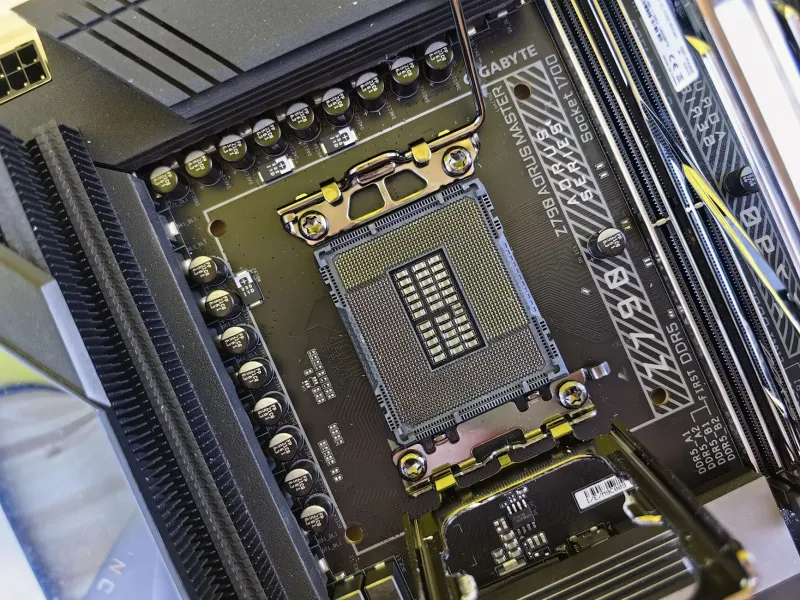
Capacitor bulging. This one requires a visual inspection, but if you're comfortable pulling your cooler and looking at the board, physically swollen capacitors are an obvious red flag. On quality modern boards with solid polymer caps this is less common, but it does happen — especially on older or cheaper designs.
Why Premium VRM Design Is About Longevity, Not Just Overclocking Headroom
The enthusiast community tends to frame VRM quality almost entirely around overclocking — more phases, higher-rated components, better thermal headroom for pushing your CPU past its limits. And while that's all true, it misses a bigger point for the average gamer who never touches their BIOS voltage settings.
A well-designed VRM running a stock CPU at stock voltages operates well within its thermal and electrical limits. That headroom isn't wasted — it means the components are under less stress every single cycle, which translates directly into slower degradation over time. A budget board with a minimal VRM that's sweating to keep up with a power-hungry processor from day one will accumulate wear much faster than a more capable design doing the same job with capacity to spare.
MSI's higher-tier boards — the MEG and MPG lines in particular — use more robust MOSFET solutions, higher-quality capacitors, and better thermal management for the VRM section. If you're planning to keep a build running for five or more years, that design investment starts making a lot more sense from a longevity standpoint, not just a performance one.
What You Can Do About It
Prevention is genuinely easier than dealing with the fallout. A few practical moves:
Keep your VRM cool. This is the single biggest lever you have. Good case airflow that moves air across the motherboard — not just the GPU and CPU — meaningfully reduces thermal cycling stress on power delivery components. If you're running a case with poor airflow, your VRM is suffering for it.
Don't ignore BIOS voltage settings. Leaving LLC (Load Line Calibration) cranked to max for no good reason, or running manual voltages higher than necessary, puts extra stress on your VRM for zero real-world benefit if you're not overclocking.
Monitor regularly. Make HWiNFO64 part of your routine, not just something you open when something goes wrong. Logging temperature and voltage trends over time gives you actual data to work with instead of guesswork.
Match your CPU to your board honestly. Running a 170W TDP processor on a board with a four-phase VRM to save a hundred bucks is a false economy. The VRM will degrade faster, run hotter, and potentially fail sooner.
The Bottom Line
Your MSI motherboard's power delivery isn't a set-it-and-forget-it component. It's doing real work every time you game, and like any component under sustained stress, it changes over time. The difference between catching early warning signs and discovering a dead board is mostly just knowing what to look for — and caring enough to look. Keep an eye on your temps, monitor your voltages under load, and give your VRM the airflow it deserves. Your build will thank you for it a few years down the road.